Naia Build user interface at a glance
The Naia Build user interface consists of the following elements:
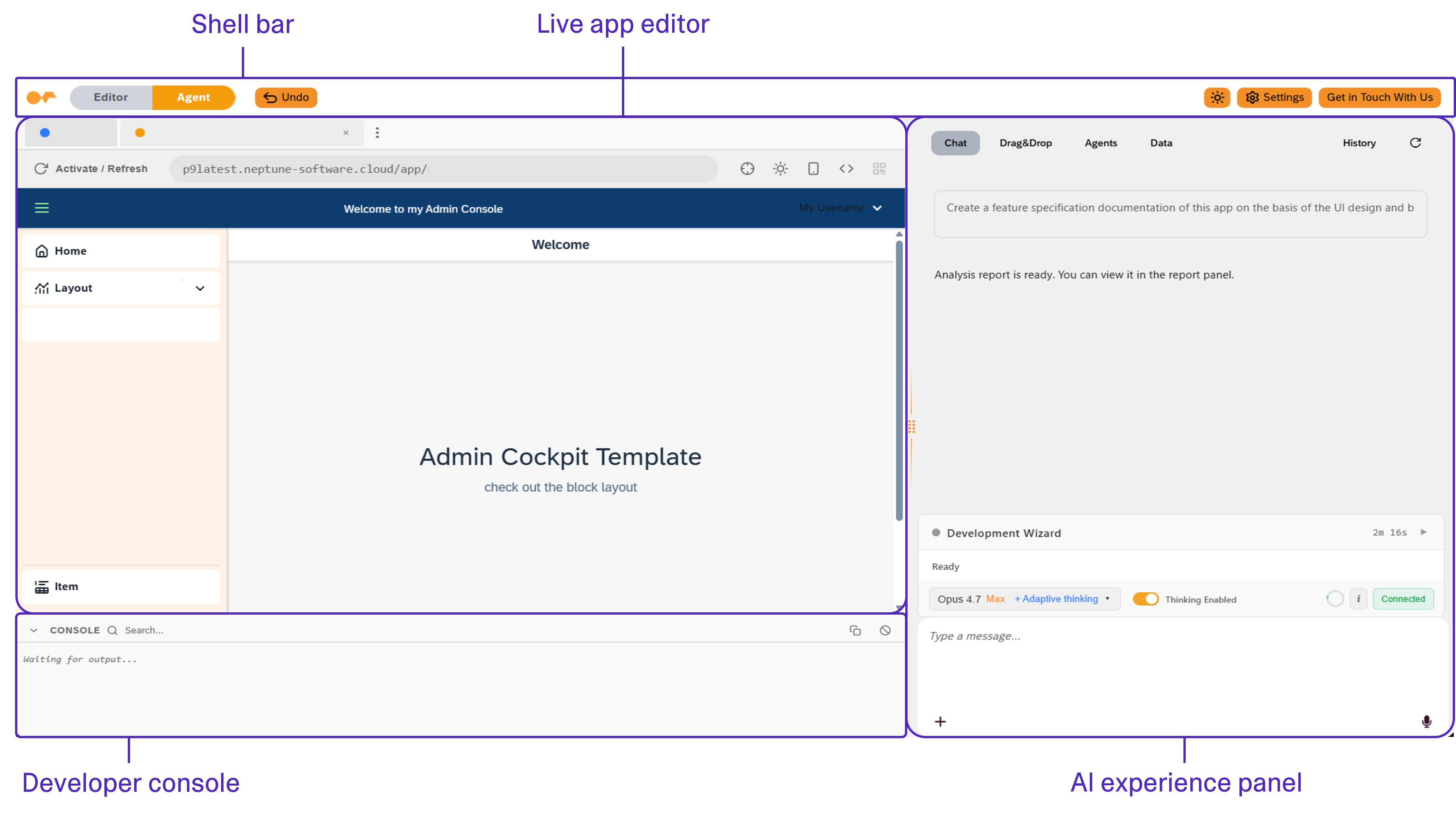
Shell bar
The shell bar is the uppermost part of the user interface. It is always visible and gives access to the following actions and functions:
- Editor/Agent toggle
-
Switch between Editor and Agent to toggle Naia Build on and off. When you switch to Editor, you enable and display the Neptune DXP - Open Edition App Designer experience. When you switch to Agent, you enable and display the user interface of Naia Build.
- Undo
-
Reverts the most recent change applied to the application by Naia Build, restoring the previous component configuration state.
- Light mode/dark mode toggle
-
Switch between light and dark mode for the Naia Build workspace.
- Settings
-
Adjust general settings for your application that correspond to the Neptune DXP - Open Edition App Designer Application Settings.
Live app editor
The live app editor hosts your live application preview in an embedded browser format along with a set of tabs and header tools that let you build, test, and refine your application in real time.
- Tab views
-
When you chat with Naia, your application displays within a tab view. When you request technical documentation, a planning overview, or feature specfication, these information products display within a tab view. Export to File and Generate Version correspond to version management and export in the Neptune DXP - Open Edition App Designer.
- Tools
-
Embeds the Neptune DXP - Open Edition Cockpit. Use it to work with artifacts, such as tables and APIs, including those Naia Build creates through the MCP server connection. See Neptune DXP - Open Edition Cockpit and MCP server integration.
- Backend scripts
-
Opens server scripts created for your application, so you can review and edit them without leaving Naia Build. See Neptune DXP - Open Edition Cockpit and MCP server integration.
- App Map
-
Displays a generated map of your application and its relationships with connected artifacts, for example, APIs, tables, and server scripts. See Generate app documentation and technical analysis.
- Activate/Refresh
-
Save changes and restart the preview of the live app editor with all changes applied.
- Address bar
-
Displays the URL address that you application is accessible from.
| The App Map, Tools, and Backend scripts tab views are part of Naia Build for Neptune DXP - Open Edition. |
Live app editor icons
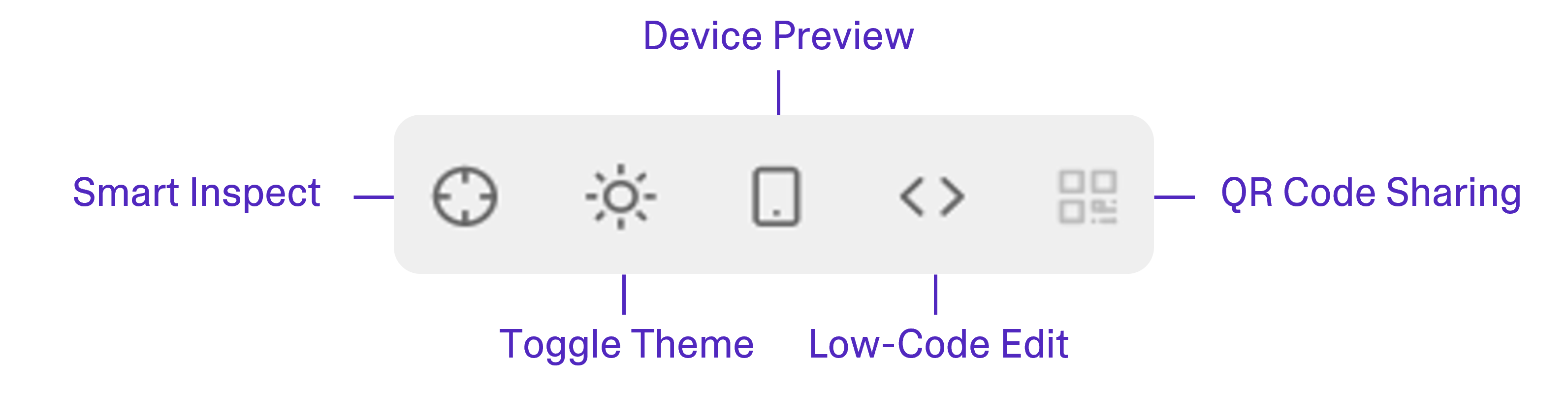
- Smart Inspect
-
An inspect mode that allows you to hover over components in the live application preview to identify their type and ID. Drag-selecting across the live app editor selects multiple components.
- Quick Actions
-
When you right-click a component or multiple components using Smart Inspect, you open the Quick Actions and Style menu. Select between the following: Show Details (opens the component in the embedded App Designer application tree), Duplicate (duplicates the selected component), Delete (deletes the selected component), Exit Inspect (exits Smart Inspect mode), Add to Chat (inserts the component type and ID to the Chat tab for specific reference during chat sequence with Naia Build), or Quick Edit with Naia (edit the component on the fly within the live app editor context by inserting specific edit requests via prompt).
- Toggle Theme
-
Switch between dark and light mode. Test your application in both themes. Confirm that text remains legible, contrast is sufficient, and brand colors are applied correctly in both modes.
- Device Preview
-
Allows you to preview your application in different device viewports, including tablet and mobile, so you can visually test responsiveness without leaving the workspace.
- Low-Code Edit
-
Enables you to make real-time edits to your application directly within the low-code editor view of the Naia Build workspace to emulate Neptune DXP - Open Edition App Designer low-code manual functionality, bridging the gap between AI-assisted development and manual control.
- QR Code Sharing
-
Generate a QR code for the application to share with colleagues, testers, or stakeholders. Anyone scanning the code with a mobile device and access to the Neptune DXP platform will be directed straight to your application, enabling on-device testing without any deployment steps.
QR code sharing requires the recipient to be a registered Neptune DXP platform user, unless your license allows enabled anonymous (public) access for this application on a system level. Confirm access settings in the application settings before sharing externally (for anonymous access in Neptune DXP - Open Edition: Settings → General → Enable Anonymous Access to App, for role-based access in Neptune DXP - Open Edition: Setting → Roles).
Developer console
The developer console is a built-in developer console for monitoring logs, errors, and runtime output, giving you full visibility into what is happening under the hood when using Naia Build. It also corresponds to you browser’s developer console (F12). If a console error is triggered when running the application, Naia Build presents it and offers a one-click Fix with Naia solution.
AI experience panel
The AI experience panel contains multiple tabs that give you access to Naia Build’s core interaction modes and development history.
Chat tab
The primary interface for interacting with Naia Build. It accepts natural language prompts to modify application UI, implement logic, and generate documentation. You can attach files, for example, screenshots, design references, or an XLSX file to generate an application from. You can also ask Neptune-related questions directly and receive answers in context.
Use the Development Wizard to select an AI model to power Naia Build. The Development Wizard also features a progress bar and real-time information about the sequence of steps, roadmap actions, and live components or code being modified once you have triggered a chat prompt.
Drag&Drop tab
The Drag&Drop tab provides a visual, drag-and-drop interface for composing and arranging components within your application, emulating the classic low-code building experience of the Neptune DXP - Open Edition App Designer, including its Application tree, Component library, and Preview panes. Changes you make in the Drag&Drop tab manually serve as live context for Naia Build for further AI-based development prompting.
Agents tab
The Agents tab groups the background capabilities that support development. It contains the following groups: Agents, Skills, and Rules.
Agents
The Agents group provides agents that analyze your application and generate technical outputs. Agents run as background processes and do not interrupt the active development session:
- Data Flow
-
Analyzes models, APIs, bindings, and data transformations.
- Documentation
-
Generates comprehensive technical documentation.
- App Flow
-
Maps navigation paths, user journeys, and interaction flows.
- Custom Analysis
-
Answers any analytical question you ask about the application.
You can choose the model that runs each agent. See Generate app documentation and technical analysis to run an agent and select its model.
Skills
Skills provide guided, task-specific tools. The Neptune DXP App Migration Wizard migrates a Neptune DXP - SAP Edition app into Neptune DXP - Open Edition for Naia Build to continue automated app development on the migrated app, or for you to continue manual app development in the App Designer of Neptune DXP - Open Edition.
Rules
Rules guide the AI on every prompt. Personal rules are visible only to you. Team rules are shared with everyone on your account. See Define custom rules.