Version Management
Procedure
Generate a new version
Once an application is active, you can generate a new version by clicking on Application and then selecting Generate Version.
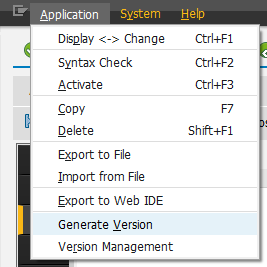
| You can also generate a version through the App Designer |
In addition, every time a transport request is assigned to an application, a new version is automatically generated in the system.
Comparing versions
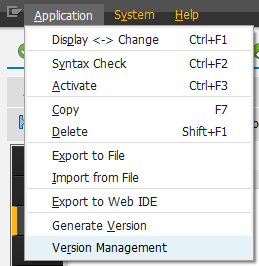
To access the Version Management section, click on Application in the menu and then select Version Management.
The screen will be divided into two sections. The left side will display the current version of the application, while the right side will present a list from which any of the previous versions of the application can be selected.
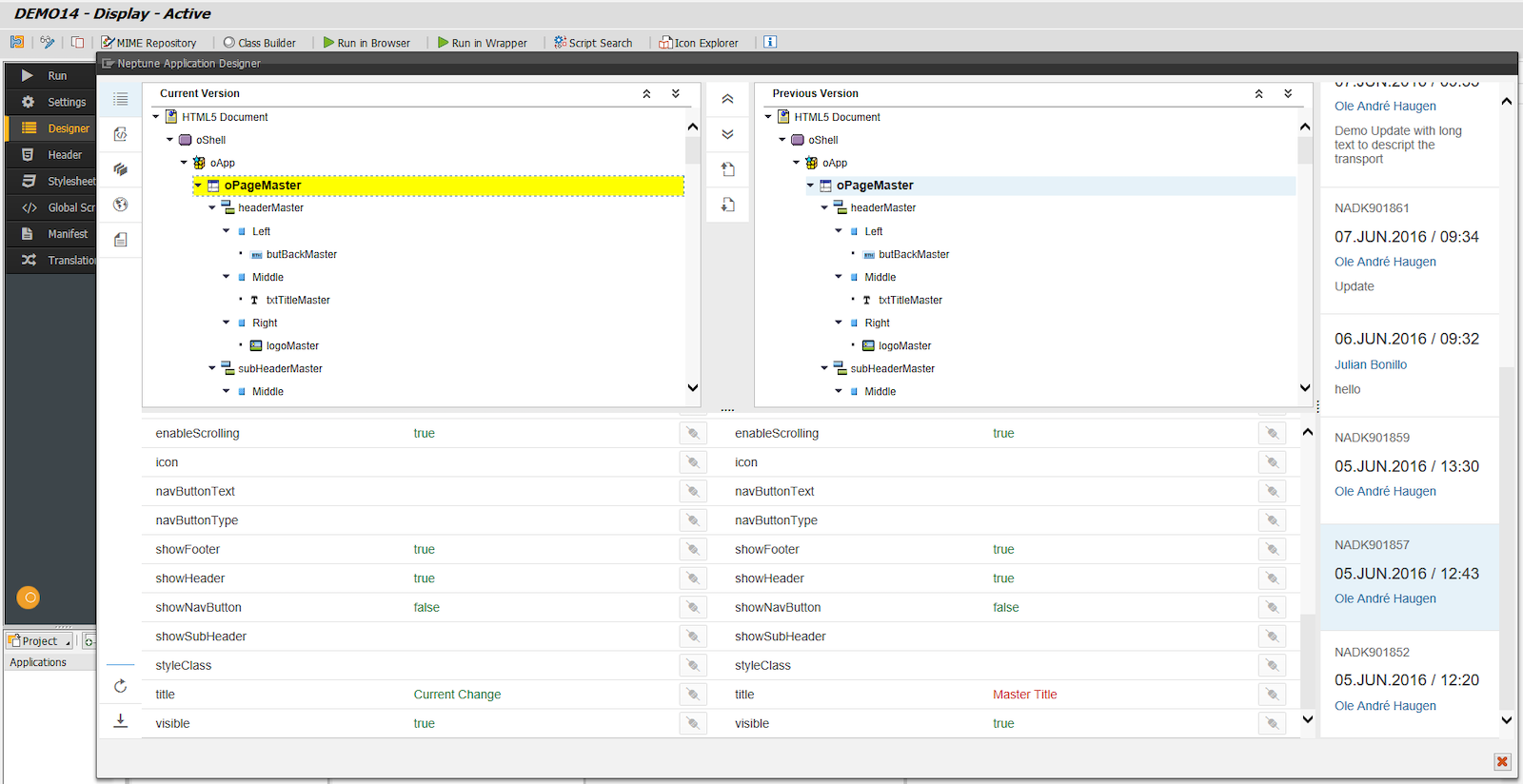
Color legend in objects comparison
Objects in the component tree will be highlighted with different colors based on a comparison between the current and previous versions.
- Yellow
-
There are differences in the object attributes between versions.
- Green
-
The object is new in the current version (and did not exist in the previous version).
- Red
-
The object existed in the previous version but has been deleted in the current version.
- Peach
-
The object was disabled in the previous version.
Color legend in attributes comparison
Object attributes will be displayed in the following colors in order to show differences.
- Green
-
Attribute value did not change between previous and current version.
- Red
-
Attribute value changed between previous and current version.
In the example below, attribute title has changed while attribute visible has not.

Script Comparison
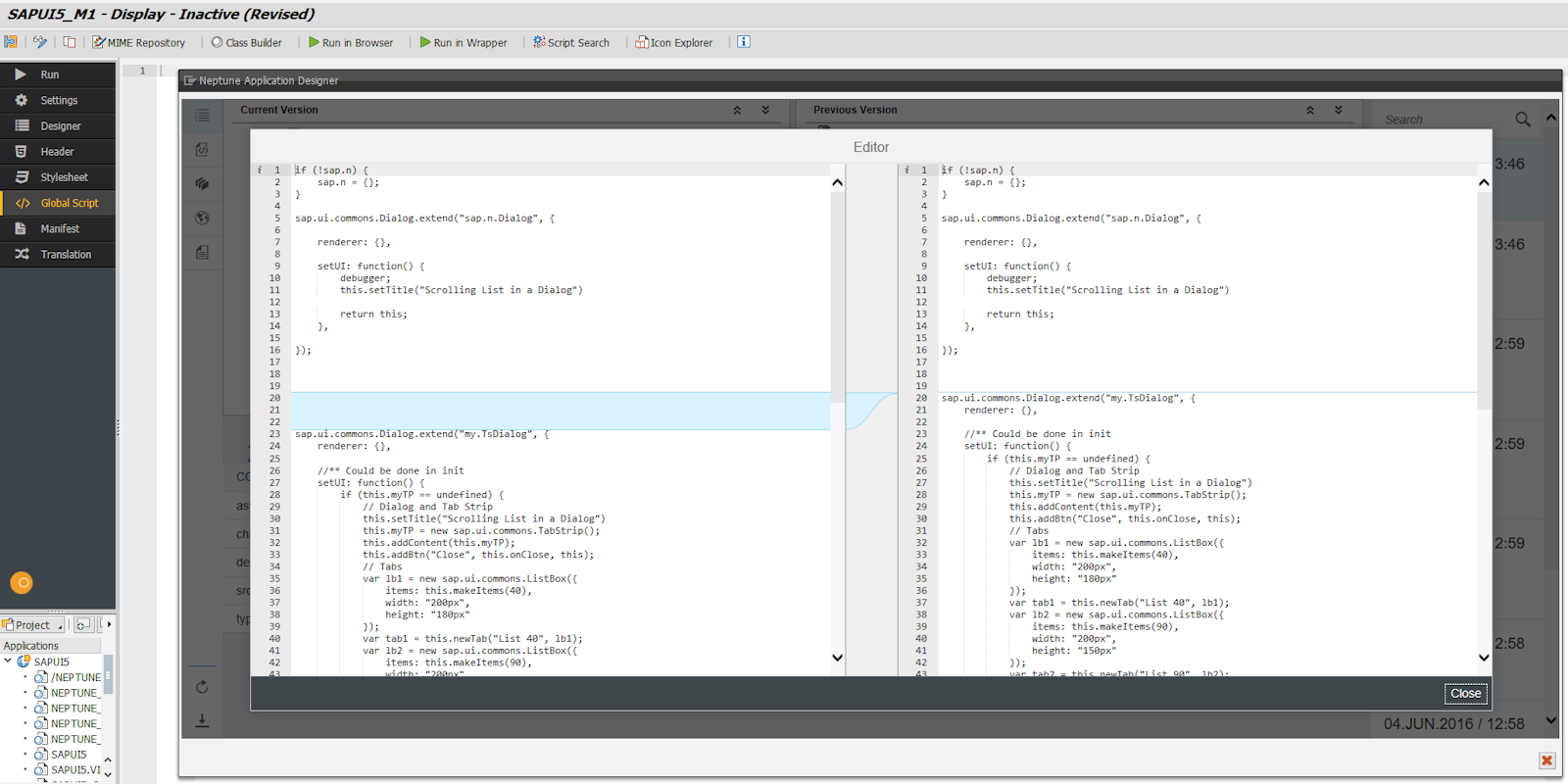
The scripts in the application’s header, stylesheets, global scripts, manifest, and object events will be displayed side by side, highlighting any differences in the code using a light blue color.
Export to file
You can export an XML file of an application version, both for the current active version and a compared previous version separately.
Version rollback
When comparing versions of an application, selecting Roll Back allows you to roll back the current, active version to the selected previous version.
The system writes this rolled-back version into the designer as the inactive version, displayed as Inactive (Changed).
This rollback does not immediately update the runtime application. To make the rolled-back version effective, you must activate it. Until activation, the runtime version remains unchanged.
If you refresh the browser after performing a rollback, the designer continues to display the rolled-back version as the inactive state. However, the runtime application is only updated once activation is completed.