Launchpad settings
You can customize various launchpad settings, including, for example, entering a display name and description, configuring a custom login screen for users, configuring a PIN code screen for users, adding an AI agent chat to the launchpad, and more. The following launchpad setting descriptions guide you to create a launchpad with settings that correspond to your specific business requirements.
Settings tab
Enter general settings for your launchpad.
General section
You can enter relevant names and descriptions, and assign a relevant development package for the launchpad.
General settings table
| Setting name | Setting description |
|---|---|
ID |
Technical ID automatically assigned to the launchpad after creation |
Name |
A meaningful name that refers to the launchpad artifact name within the system and is displayed in the URL path of the launchpad. |
Package |
Selection of development packages that you assign to the launchpad |
Launchpad Application |
Defines the standard underlying framework application |
Title |
The display title of the launchpad displayed to users on the user’s browser on runtime. The launchpad title is displayed to end users on the launchpad login screen, when enabled. |
Description |
The display description of the launchpad. The launchpad description is displayed to end users on the launchpad login screen, when enabled. |
| Attributes bound to a global i18n model for localization for the Title and Description fields display the binding icon () in the Launchpad tool list view. |
UI5 section
You can use the UI5 section to load the relevant underlying OpenUI5 or SAPUI5 framework for the launchpad.
UI5 settings table
| Setting name | Purpose | Available Options/Examples | Notes/Constraints | ||
|---|---|---|---|---|---|
Version |
Determines which version of the OpenUI5 framework to load. |
|
For continuous compatibility, Neptune always recommends the most recent, long-term maintenance OpenUI5 framework version. |
||
SAP UI5 Module Path |
Allows specifying a custom path to an external SAPUI5 library. Not needed for apps from Neptune DXP - SAP Edition 25.0.0 or higher. |
If your launchpad includes tiles running applications from an SAP system, those
apps might need SAP-specific UI5 libraries. Enter the path to the For apps from Neptune DXP - SAP Edition 25.0.0 or higher, leave the field empty. The SAP view of such an app declares the resource path, and its UI5 libraries and modules are loaded before the app is instantiated. While a path is set in this field, the launchpad loads a fixed set of UI5 libraries from the path and ignores the libraries that the view declares. The modules of the view still load, but they are resolved against the path in this field. If the
|
Cookies section
You can enable a cookie confirmation dialog with relevant title and messaging for the use of cookies on the launchpad.
Cookies settings table
| Setting name | Description |
|---|---|
Show Cookies Dialog |
Enables the display of a cookies dialog for the launchpad |
Title |
Specifies the cookies dialog message title that appears when the cookies setting is enabled |
Message |
Specifies the cookies dialog message body that appears when the cookies setting is enabled |
Blackout section
You can block the launchpad and enable the display of a blackout message informing the user that the launchpad is blocked.
Blackout settings table
| Setting name | Description |
|---|---|
Enable Blackout |
Enables the blackout setting for a launchpad |
Title |
Specifies the blackout message title that appears to the user when a user tries to access the launchpad when the blackout setting is enabled |
Message |
Specifies the blackout message body that appears to the user when a user tries to access the launchpad when the blackout setting is enabled |
Single App Launchpad section
You can choose to display only one application on your launchpad. All other applications and tiles that might have been selected are hidden when a setting in this section is selected.
Single App Launchpad settings table
| Setting name | Description |
|---|---|
Start Application |
Selection of defined UI5-based applications made in the App Designer in the system |
Start Web Application |
Selection of defined web applications in the system |
Launchpad Footer section
You can incorporate a custom footer for the launchpad that can include interactive buttons and other required controls defined as an application artifact in the App Designer.
Launchpad Footer settings table
| Setting name | Description |
|---|---|
Launchpad Footer |
Selection of defined custom footers made in the App Designer using the custom
|
Customization tab
You can customize the display of individual display elements and settings of the launchpad.
Settings section
Settings table
| Setting name | Description |
|---|---|
Disable Splitview |
Disables the Splitview setting, and hides it from display in the settings pane of the user launchpad experience. |
Disable Context Menu (Right Click & Long Press) |
Disables the display of the context menu for a user to perform customization actions, for example, managing screens that is accessible via right click or long press. |
Disable Customizations |
Disables application-specific sizing and screen management on the main menu, hiding the following settings from display when right-clicking a tile/tile group/application:
The tile action button remains available with the actions that do not customize the launchpad, such as favorites, settings, and help. In the user settings of the launchpad, Lock Screens, Enable Screen Changes, and Clear Customizations are hidden. |
Configure customizations for each individual device, e.g. mobile, tablet and desktop separately |
When enabled, Neptune DXP - Open Edition retrieves layout and formatting information for the launchpad on the basis of browser settings and form factor, for example, to influence dimension display on a desktop, tablet, or mobile phone respectively |
Disable redirecting user to home screen when hash navigation fails during navigation |
Does not redirect the user to the launchpad home screen when a user goes to an invalid URL when navigating in the launchpad |
Client Request Timeout (in seconds) |
Defines the time in seconds to be reached when a client request is terminated and a process is still not completed |
Enable Launchpad and Tile Trace |
Enables the launchpad and tile trace option to analyze launchpad and tile usage in the Launchpad Trace tool |
Enable Push Notifications |
Enables push notifications for the launchpad when Firebase is enabled so that the launchpad prompts the user to accept notifications. Enables Project ID and App ID for further configuration. |
Project ID |
Defines the project ID you produce when you enable Firebase (learn more about the project ID in Firebase) |
App ID |
Defines the application ID you produce when you enable Firebase (learn more about the application ID in Firebase) |
Launchpad Header section
Launchpad Header settings table
| Setting name | Description | ||
|---|---|---|---|
Hide Launchpad Header |
Hides the header toolbar of the launchpad |
||
Hide the Launchpad Header Back Button |
Hides the back button of the header toolbar of the launchpad |
||
Hide Username |
Hides the username in the user launchpad experience |
||
Show Launchpad Title in Launchpad Header |
Displays the title of the launchpad in the header toolbar menu next to the inserted launchpad logo and/or back button |
||
Show Active App Title in Launchpad Header |
Displays the active application title of the launchpad in the header toolbar menu next to the inserted launchpad logo and/or back button
|
||
Hide Launchpad Search |
Hides the launchpad search bar
|
Main Menu Display section
In the Main Menu Display section, you can choose whether the main menu of the launchpad is displayed in the header.
Main menu display settings table
| Setting name | Description | Default |
|---|---|---|
Show Main Menu in Header Toolbar |
Displays main menu items in the header toolbar of the launchpad |
Yes |
One-Line Top Menu |
Displays all header toolbar elements, for example, a company logo and further shell bar button names, on one line |
No |
Do Not Display Submenus on Hover |
Disables the display of individual main menu items in the header toolbar of the launchpad when a user hovers over them |
Yes |
Pin Main Menu to Left Side Bar |
Pins the main menu to the left side navigation of the launchpad. On small screens, the main menu slides out to view |
No |
Active Apps Display for Desktop section
Active apps display settings table
| Setting name | Description |
|---|---|
Pin Active Apps to Left Side Navigation |
Pins active apps to the left side navigation of the launchpad for easy access |
Show Active Apps in Header Toolbar |
Displays the active app in the header toolbar of the launchpad |
Agent tab
Include agentic abilities in the user launchpad experience powered by the Naia Agent
Studio. By selecting an agent, the user launchpad experience includes a chat interface
equipped with the selected agent. A virtual tool has been added to the agent so
that it has knowledge of the launchpad’s capabilities. This tool can open
applications that exist in the launchpad within the chat interface, and if the
startParams are defined in the description of the app, the agent will generate
the data based on that.
Agentic Apps
On the Agent tab, select an agent in the AI Agent field so the launchpad shows a chat panel. This agent can be a normal agent or an Agentic Apps agent; if the field is empty, no chat panel appears. Then, in the Agentic Apps section, turn on Enable Agentic Apps and select an Agentic Apps Agent to let users operate the launchpad’s apps by describing what they want. The agent works across the apps on the launchpad. See Agentic Apps.
When the launchpad holds several apps, the agent decides which one to open by matching the request against each app’s Description. Keep app descriptions meaningful and specific so the agent opens the right app.
Agentic Apps settings table
| Setting name | Description |
|---|---|
AI Agent |
The agent that powers the launchpad chat panel. If no agent is selected, the chat panel does not appear. The agent can be a normal agent or an Agentic Apps agent. |
Enable Agentic Apps |
Lets the selected agent operate the apps on the launchpad. |
Agentic Apps Agent |
Selection of an agent that has Enable use with Agentic Apps turned on. See Enable use with Agentic Apps. |
Enable WebMCP (Beta) |
Exposes the apps' Agentic Apps tools over the Model Context Protocol. When turned on, you can review the exposed tools in the WebMCP Tool Inspector. |
| WebMCP for Agentic Apps is available as a beta feature. As the tool continues to develop, you may notice updates and improvements over time. |
When WebMCP is turned on for the launchpad, the launchpad itself exposes no tools. The tools become available once the user opens an app inside the launchpad. The launchpad WebMCP setting takes precedence over the individual setting of the apps opened inside it.
Tile Group tab
You can select one or more tile groups to display in the launchpad.
Launchpad Layout tab
You can select launchpad layouts to control the appearance of the launchpad, for example, for a light and/or dark appearance.
Global Style tab
Global Style settings table
| Setting name | Description |
|---|---|
Global Style |
Selection of defined custom CSS styling artifacts from the Global Style tool to apply to the launchpad. |
HTML Header tab
You can add scripts, stylesheets and other relevant content, that should be included in the launchpad HTML header area.
| Do not add launchpad-specific CSS to the HTML Header tab. Instead, use the dedicated Global Style tab and the Global Style tool. CSS that you add in Global Style is automatically added to the bottom below all SAPUI5 library code. |
Header content dependent of OpenUI5
SAPUI5 files are loaded asynchronously. The OpenUI5 framework adds content dynamically to the end of the HTML Header tab.
Start with an attachInit event handler to start the process when you have uploaded
all UI5 library files. Get the header tag and add your files to the header. Your
files appear below the UI5 files and the content is loaded after the UI5 content.
<script>
    sap.ui.getCore().attachInit(function() {
        var head  = document.getElementsByTagName("head")[0];
        var script  = document.createElement("script");
        script.type = "text/javascript";
        script.src = "https://unpkg.com/axios/dist/axios.min.js";
        head.appendChild(script);
    });
</script>
Stylesheet example:
<script>
    sap.ui.getCore().attachInit(function() {
        var head  = document.getElementsByTagName("head")[0];
        var link  = document.createElement("link");
        link.rel  = "stylesheet";
        link.type = "text/css";
        link.href = "/neptune/public/application/neptune_launchpad_standard/css/app.css";
        head.appendChild(link);
    });
</script>
Authentication tab
You can manage access to the launchpad according to company-specific authentication protocols, and customize the login screen of the launchpad for end users.
Login section
You can configure the display of a login screen through which a user must authenticate themselves according to the relevant authentication identity provider to access the launchpad.
Login settings table
| Setting name | Description | ||||
|---|---|---|---|---|---|
Default Provider |
Defines the default identity provider for the login screen for the user to authenticate themselves. The options you can select from are based on the authentication configurations created in the System Settings tool. |
||||
Custom Login Title |
Defines the custom title displayed on the login screen of the launchpad |
||||
Custom Login Subtitle |
Defines the custom subtitle displayed on the login screen of the launchpad |
||||
Custom Login App |
Defines the custom login application from the system to use as the login screen functionality for the launchpad. Neptune DXP - Open Edition provides a standard login application that is used by default. |
||||
Password Reset Email |
Selection of email templates in the system that can contain password reset instructions in the email body for the user to sign in to the launchpad |
||||
Hide Login Selection |
If you have created multiple authentication configurations in the System Settings tool for login to the launchpad, this option hides the dropdown menu for the login selection so that only the authentication configuration selected from Default Provider is displayed to select. |
||||
Hide Local Login Selection |
If you have created multiple authentication configurations in the System Settings tool for login to the launchpad, this option hides the local login selection from the dropdown menu |
||||
Enable Anonymous Access to Launchpad |
Enables anonymous access for a launchpad and its related applications. When you enable anonymous login for users, the provider of the launchpad generates a new user object for the session.
|
External Users section
Administrators can restrict self-registration to selected host domains. Users with an email address of a specified domain can request an activation code to sign in to the launchpad. See Enable self-registration in a launchpad.
External users settings table
| Setting name | Description | ||
|---|---|---|---|
Allow Self-Registration of Users |
Enables self-registration in the launchpad for users |
||
Email pattern |
Defines which host domains are allowed for self-registration, for example, |
||
Assign Roles |
Selection of roles in the system to assign to new users |
||
Assign Security Groups |
Selection of security groups in the system to assign to new users
|
||
Activation Email |
Selection of email templates in the system that can contain the activation token to sign in to the launchpad in the email body |
Language tab
Language section
You can customize language settings of the launchpad according to multilingual requirements.
Language settings table
| Setting name | Description | ||
|---|---|---|---|
Default Language |
Defines the language in which the login screen appears when the user access the launchpad. If you do not select any option, the launchpad applies the default language of the browser. When the user is signed in, the language set in the user profile is used. If the user’s language is not among the supported languages set in Users Can Select These Languages, the default language set in Default Language is used. |
||
Fallback Language |
Defines which fallback language to use, if the default language of the browser is not one of the supported languages from Default Language. When the user is signed in, the language set in the user profile is used. If the user’s language is not among the supported languages set in Users Can Select these Languages, the selected fallback language is used. |
||
Users Can Select These Languages |
Defines which languages the launchpad supports. If no languages are selected, all available languages from selection are supported by default. When the user is signed in, the language set in the user profile is used. If the user’s language is not among the selected languages, the language set in Default Language is used.
|
PWA tab
Progressive Web App section
You can specify if the launchpad can serve as a progressive web application (PWA).
Progressive web app settings table
| Setting name | Description |
|---|---|
Enable PWA |
Specifies that the launchpad is a PWA. Enables the sections Autolock, PIN, and Progressive Web App for further configuration. Shows that the launchpad is a PWA in the Enable PWA column in the list of available launchpads in the Launchpad tool. |
Autolock section
You can enable an autolock function for the PWA if a user is inactive.
Autolock settings table
| Setting name | Description |
|---|---|
Enable |
Enable autolock setting for the PWA. |
Autolock on Idle in Seconds |
Number in seconds that must be reached on idle for the launchpad to return to the sign-in screen. |
PIN section
You can enable a PIN for the PWA. When a user signs in to the PWA, the PWA prompts the user to create and enter a PIN to access the launchpad of the PWA.
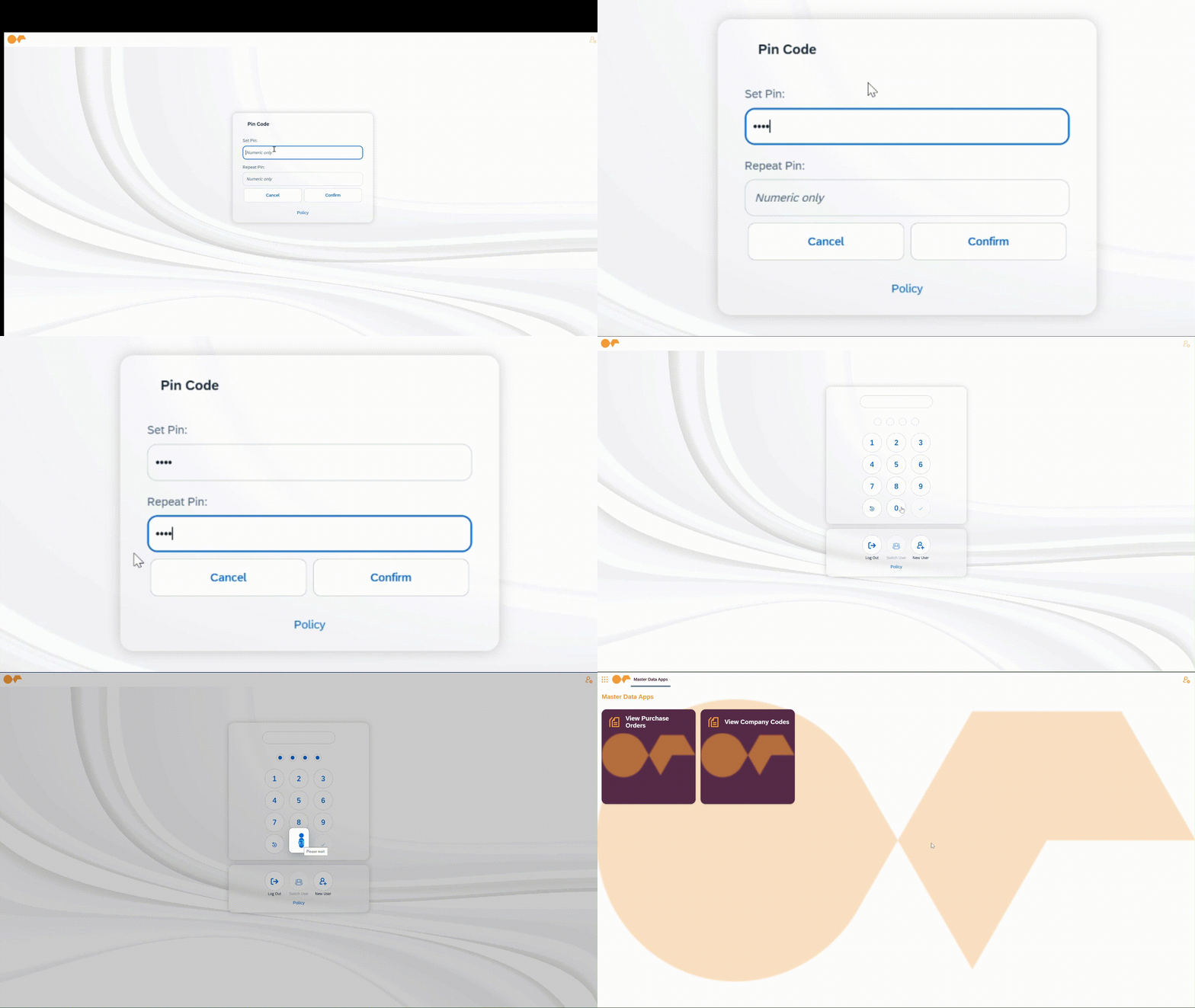
PIN settings table
| Setting name | Description | Default | ||||
|---|---|---|---|---|---|---|
Enable PIN |
Enables the PIN setting for the launchpad. Enables the fields PIN Length, PIN Tries, PIN Key Iterations, and Enable Passwordless Login with Public Key Authentication for further configuration. |
No |
||||
PIN Length |
Defines the number length of the PIN that the user can create when the user wants to access the launchpad. Contains the following options for selection:
|
4 numbers |
||||
PIN Tries |
Defines the maximum number of tries that a user can enter the PIN for before automatic signout. Number selection range between 1 and 10. |
5 tries |
||||
PIN Key Iterations |
Defines the number of PIN key iterations used to encrypt the PIN according to
the
|
40,000 PIN key iterations |
||||
Enable Web Authentication (Public Key Infrastructure) |
If a user’s device supports passwordless login with public key authentication, like, for example, authentication via biometric fingerprints or Face ID, enabling this setting allows users to log in to the launchpad securely without needing to enter a password. Instead, they can authenticate with a device, fingerprint, or security key, making accounts safer and easier to access. This modern approach protects against hacking and phishing. |
No |
Progressive Web App section
You can select display options for your PWA, including display mode, display icons or screenshots from the Media Library for different end devices, and influence the color scheme.
Progressive web app settings table
| Setting name | Description | ||
|---|---|---|---|
PWA Install Dialog Title |
Defines a fixed app name for the PWA install dialog, used for all users. If the field is empty, the install dialog uses the launchpad Title. If the Title is bound to an i18n model, the name is resolved in the browser language of the user. If no text exists for that language, the fallback locale of the i18n model is used, and then the master text. |
||
Display Mode |
Defines how the launchpad displays after it is installed as a PWA. The setting has no effect when the launchpad runs in a regular browser tab. You have the following options:
If the field is empty, Standalone is used. On iOS, Minimal UI and Full Screen both display as Standalone. The display mode is read when the launchpad is installed. A change applies to new installations. On iOS, users must remove the installed launchpad from the home screen and add it again before a change takes effect.
|
||
Icon for All iOS devices |
Display icon for PWA with a recommended image size of 540px x 540px for all iOS devices |
||
Small Icon fo Android devices |
Display icon for PWA with a recommended image size of 192px x 192px for Android devices |
||
Large Icon for Android devices |
Display icon for PWA with a recommended image size of 512px x 512px for Android devices |
||
Desktop Vertical Screenshot Image |
Display screenshot for PWA with a recommended image size of 720px x 540px wide resolution for desktop |
||
Desktop Horizontal Screenshot Image |
Display screenshot for PWA with a recommended image size of 720px x 540px narrow resolution for desktop |
||
Theme Color |
Lets you select a custom color from the color picker for the theme of the PWA |
||
Background Color |
Lets you select a custom color from the color picker for the background of the PWA |
An installed PWA retrieves the current launchpad configuration from the server on every update, including after PIN entry. Changes that you make in the Launchpad tool therefore apply without reinstalling the PWA. This includes, for example, the header, top menu, search, footer, title, start application, blackout settings, the assigned light and dark launchpad layouts, and the appearance preference.
Changes to Enable PWA, to the PIN settings, and to public access apply only after the PWA is restarted. The Display Mode is read when the PWA is installed, see [pwa-display-mode].
Role tab
You can select a user role from the Role tool to the launchpad.
Enhancement tab
You can implement enhancement spots to use in launchpads and mobile clients. Enhancement spots are used to modify the standard Neptune DXP - Open Edition code to fit your specific requirements. Launchpad enhancement spots are grouped into the following categories:
-
Authentication: Authentication event-based enhancement spots
-
Common: Common event-based enhancement spots
-
Events: Tiles and launchpad event-based enhancement spots
-
Mobile/PWA: Enhancement spots only applicable for mobile
-
Push Notifications: Notification event-based enhancement spots
Designer Config tab
The Designer Config tab lists the appearance changes made for the launchpad in the Launchpad Designer, so you can review overrides without opening the Launchpad Designer. The tab is read-only. To change or reset an override, use the Launchpad Designer.
The overrides are shown as a tree. The tree is grouped first by the Light and Dark theme, and then by Launchpad Appearance, Tile Group Appearance, and Tile Appearance. Overrides for a screen tile group, section tile group, or tile are nested under the object they belong to.
Each row shows the following information:
- Name
-
The name of the appearance setting or of the object that the overrides belong to. Tile groups and tiles are named by their title, if they have one.
- Scope
-
The level at which the override applies.
- Value
-
The resulting value. For color properties, a color swatch is shown.
- Changes
-
The number of settings that the row covers.
- Technical Name
-
The technical name of the setting.