Add a script and expose its output
This task adds the Run Script node that scores each candidate. The score becomes an output that the decision in Add a decision routes on.
For how a script reads and writes the process flow’s data, and the Code Snippets it starts from, see How data moves through a process flow.
Prerequisites
-
You have created the process flow.
-
You have defined the interface.
Procedure
-
In the Script Editor, create a server script.
-
Right-click the script and select Code Snippets. Under functions > p9 > processFlow, select getData to insert the read-data snippet.
-
Adapt the snippet to score the candidate: read the candidate from
globals, compute a score, and return it withresult:// Score a candidate application. const data = p9.processFlow.getData() const candidate = data.globals.candidate const years = Number(candidate.yearsOfExperience) || 0 let score = 0 if (years >= 8) { score = 90 } else if (years >= 4) { score = 70 } else { score = 40 } result = { data: { score } } -
Open the process flow on the canvas.
-
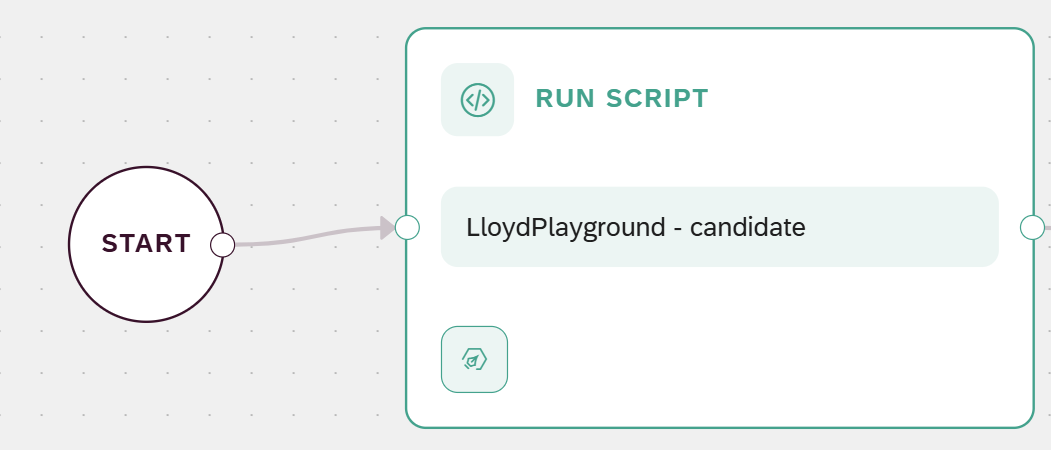
Drag a Run Script node onto the canvas, and connect the Start event to it.
-
Select the Run Script node to open its details.
-
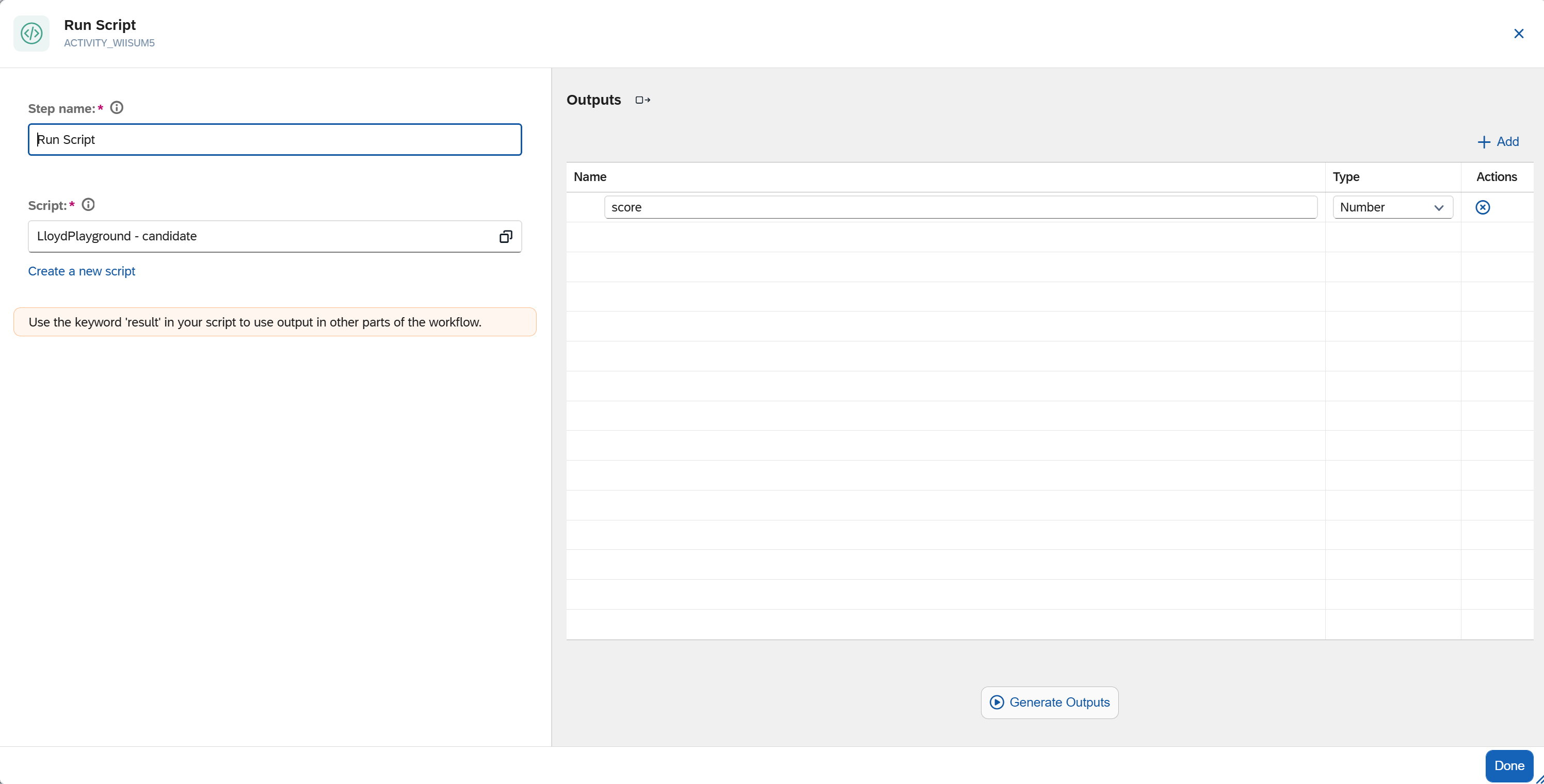
In Step name, enter a meaningful name, for example
Score application. -
Select the script you created in the Script Editor.
-
On the Outputs panel, select Generate Outputs.
Result: The score is exposed as a property that later steps can read.
Results
-
The process flow scores each candidate.
-
The score is available to later steps as an output, for example
{Outputs>/<activity>/score}, where<activity>is this node’s identifier. See Binding syntax reference.