Monitor a run
This task follows the candidate-review run in the Process Flows Overview. This is where you confirm what a run did, trace the data through it, and stop it if needed. For the parts of the tool, see Process Flows Overview user interface at a glance.
Prerequisites
-
You have run the process flow, from the Test button or from a script or an app. See Test the process flow and Trigger a process flow from an app or a script.
-
You have runtime permission on the process flow to stop it. See Design-time and runtime permissions.
Procedure
-
In the Cockpit, open the Process Flows Overview tool.
-
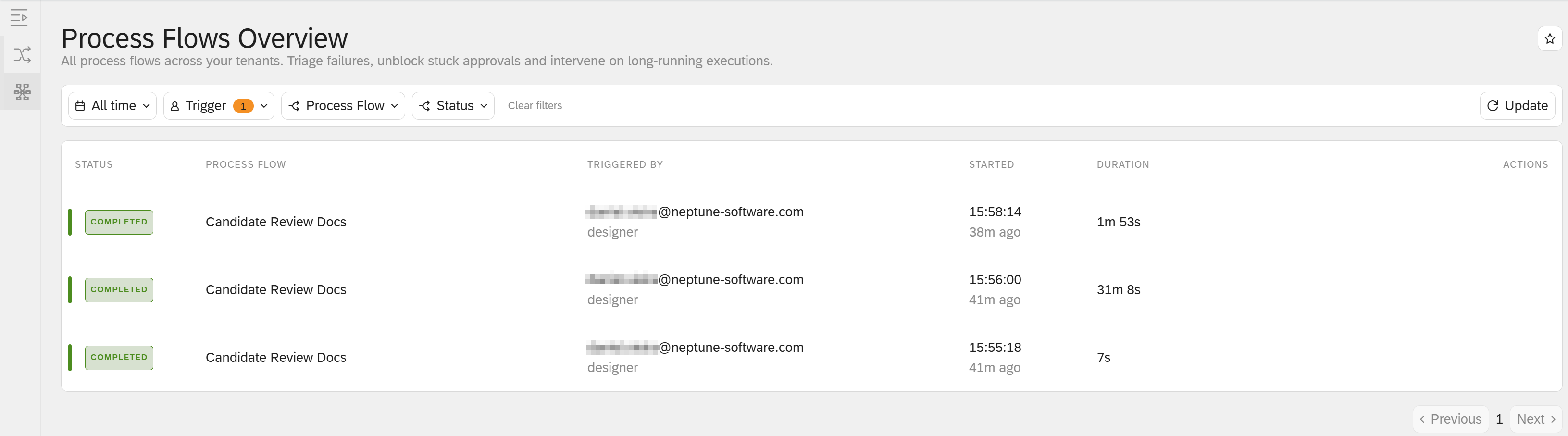
Find the execution in the list. To narrow the list, filter by date, trigger, process flow, or status. See Execution and node statuses.
-
Select the execution’s row to open its detail view.
-
Read the flow canvas to see the path the run took. Each node is colored by how the run went.
-
In the execution timeline, select a step to expand it. The expanded step shows the inputs it received and the outputs it produced, so you can trace a value from one step to the next.
Stop a run
-
Find an execution whose status is Running or Awaiting user.
-
Select Stop, from the row in the list or from the execution’s detail view.
-
Confirm the warning.
Result: The execution’s status becomes Stopped, and its pending user tasks are removed.
Results
-
You can see the exact path a run took and the data at each step.
-
You can stop a run that is stuck or no longer needed.
The completed process flow
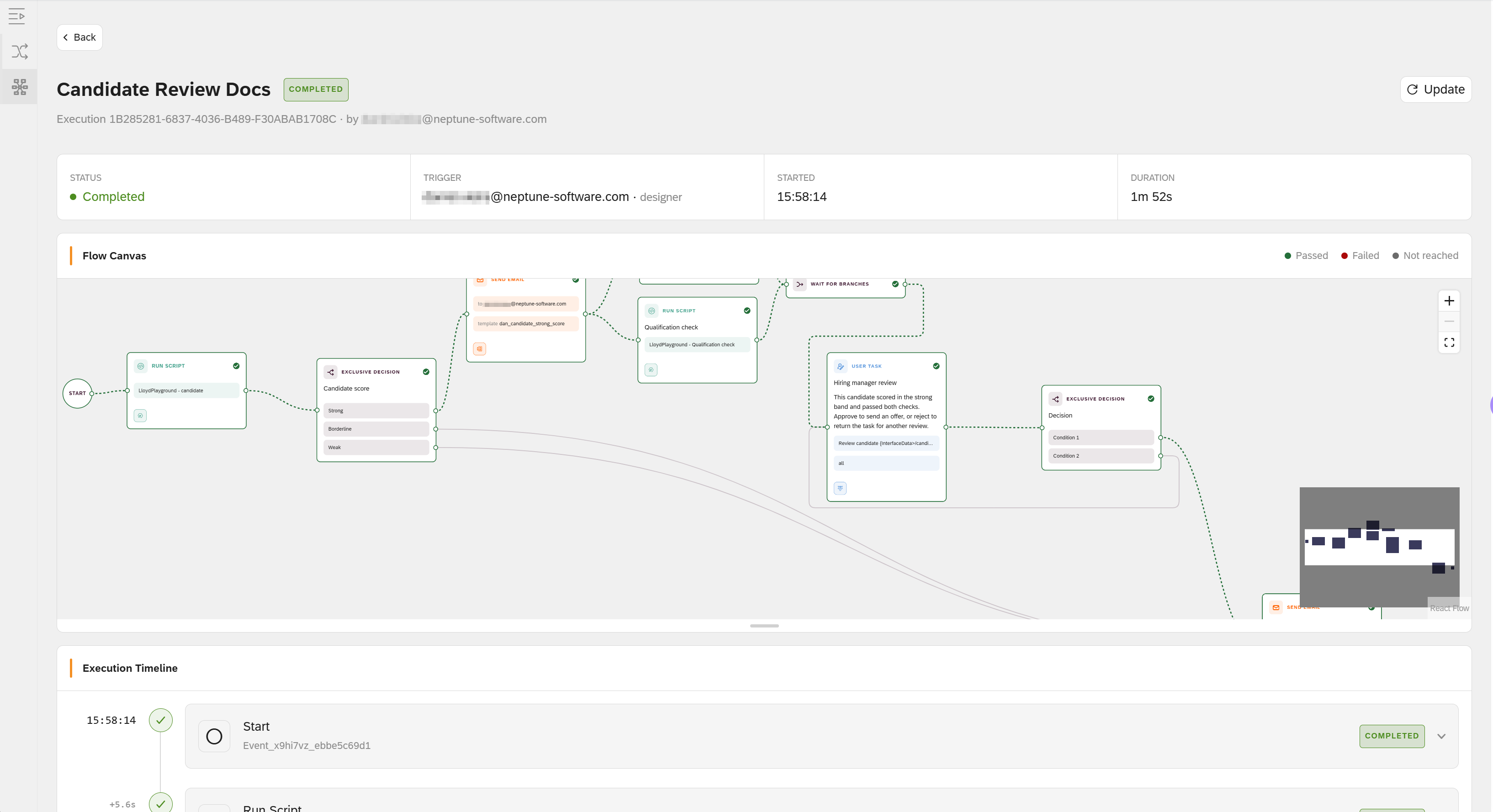
You have now built the whole candidate-review process flow. A successful run shows the full path end to end in the Process Flows Overview:
-
The Run Script node scores the application, and the score appears as its output.
-
The Decision node routes the run down the matching band, for example Strong.
-
On the strong path, the reference check and the qualification check run at the same time and join at the Wait for Branches node.
-
The User Task pauses the run until the hiring manager selects an action, then the run continues down the matching path.
-
The Send Email nodes email the acknowledgement email and the outcome to the candidate.
-
The execution ends with the status Completed.
Open the execution timeline to confirm each step ran, and to trace the score and the selected action from one step to the next.