Overview of the Script Editor
After setting up a project and creating a new script, you can start creating code with the Script Editor.
-
You can write the code that should be run in the script editing pane.
-
You can add other resources from Neptune DXP - Open Edition to your script and work with them.
-
You can use a large number of existing code snippets.
-
You can get AI assistance.
-
You have advanced search capabilities within scripts in the same project.
-
You can run the script when you are finished.
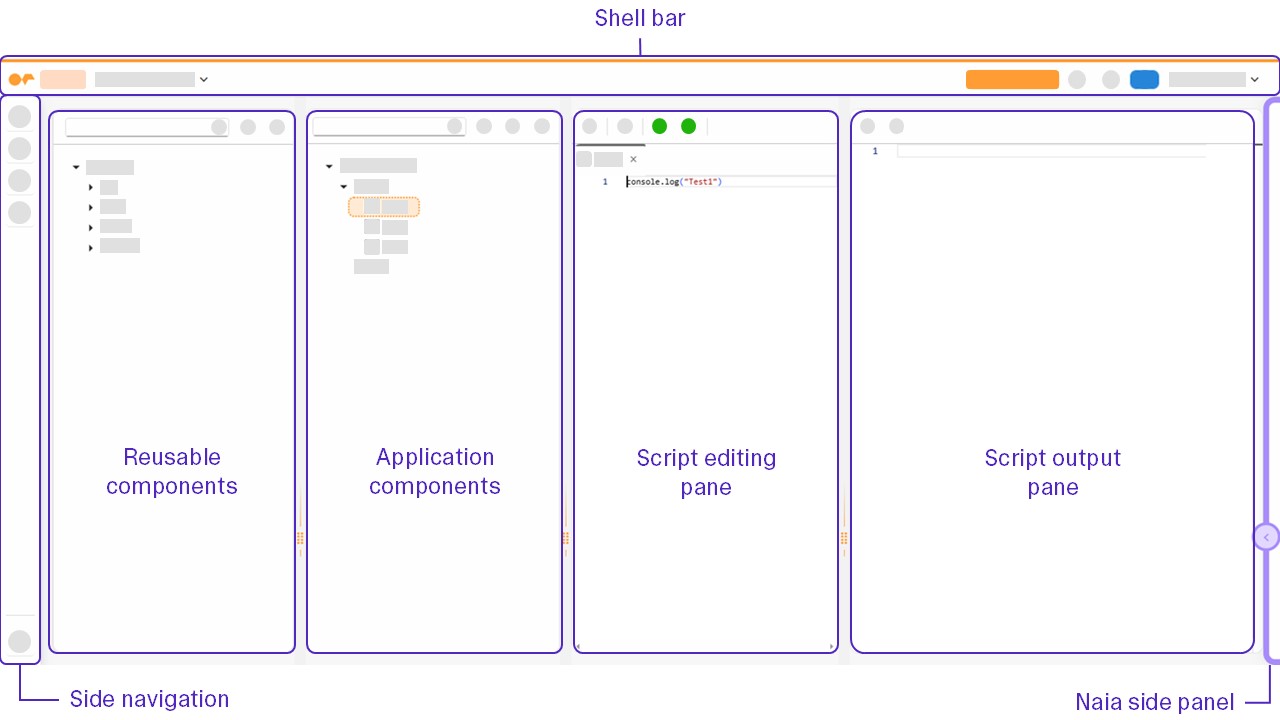
Functions in the script editing pane
You can run functions in the Script editing pane by right-clicking to open the context menu. Here are some:
- Code Snippets
-
See Code snippets in the Script Editor for more details.
- Compare Scripts
-
Select two different scripts to compare in the Script editing pane by selecting Shift or Ctrl and right-click (Windows)/Shift or Command and right-click (macOS). By selecting the option Compare Scripts, you open the Compare dialog to compare the selected scripts side by side.
- Debug
-
Select the Debug icon to run the debugger on the selected script.
- Filter editor tabs
-
To filter among multiple open script tabs by keyword name in the Editor of the Script editing pane, select the filter icon.
- Split Horizontally
-
Split the Script editing pane horizontally. You can work on two different scripts the same time now.
- Split Vertically
-
Split the Script editing pane vertically. You can work on two different scripts the same time now.
- Toggle Edit/Display
-
Allows you to switch between editing your current script and viewing referenced global scripts from other projects. When a global script is used as a dependency and originates from a different project, it can be opened directly in display mode, letting you inspect its contents without navigating to the other project. Switching back to Edit returns you to the editable script you were working on.
- Version Management
-
Select Version Management to open a window that shows previous versions of the current script. You can compare any two available versions with one another. You can also select either all versions to view in comparison, or the most recent versions in multiples of five up to 50 last versions.
Code completion for the server script context
When you type one of the following objects in a server script, code completion lists the resources that you have added to the script, including documentation of their methods and parameters. Only resources that work at runtime for the active script are suggested.
| Object | Suggestions and return types |
|---|---|
|
Tables added to the script, with table repository methods such as |
|
API operations added to the script. |
|
AI agents added to the script. |
|
Modules added to the script. |
|
Global scripts added to the script. |
|
AI functions, for example, |
Functions in the side navigation
- Toggle explorer
-
Opens the resources panel.
- Search
-
The search feature allows users to search for code throughout all scripts within your selected project. Additionally, it offers the ability to replace code, enabling users to make modifications efficiently.
If you attempt to replace with an empty string, an additional validation prompt will appear. Select Okay to proceed. - Toggle fullscreen mode
-
Fullscreen mode is a feature that allows the user to expand the Script Editor to occupy the entire screen, hiding other elements such as the browser’s address bar, tabs, and operating system taskbar.
Script folders
You can group the scripts of a project in folders in the Scripts tab of the Application components pane:
- Create a folder
-
Right-click Scripts and select the option to create a folder.
- Rename a folder
-
Right-click the folder and select the option to rename it. A folder cannot be renamed to the name of an existing folder.
- Delete a folder
-
Right-click the folder and select the option to delete it. You decide whether the scripts in the folder are deleted as well or kept.
- Move a script into a folder
-
Drag the script onto the folder.
A folder remains when it is empty, for example, after you move the last script out of it. You can delete an empty folder from its context menu.
To display each folder in a color that is generated from its name, turn on Color Folders. Folders with the same name then have the same color in all projects.
Header content
Project dropdown
In the dropdown you will find:
- Open
-
Open an existing project.
- Create
-
Creates a new project.
- Delete
-
Deletes the current project.
Deleting a project also deletes all scripts in the project. Scripts that have no project, for example, because their project was deleted in an earlier version, are listed in the project NO PROJECT.
- Global Search
-
The global search feature allows users to search for code snippets across all scripts in all existing projects. You can turn the case-sensitive search on and off.
- Refresh Masterdata
-
Refreshes Masterdata. This is used when outer resources are changed in order to update your project with the latest changes. For example, redefining an API or a Table.
- Recently opened projects
-
Shows all recently opened projects from the user.