Add a decision
This task adds the Decision node that routes each candidate down a different path based on the score produced by the previous step. It continues from Add a script and expose its output, which exposes the score as an output.
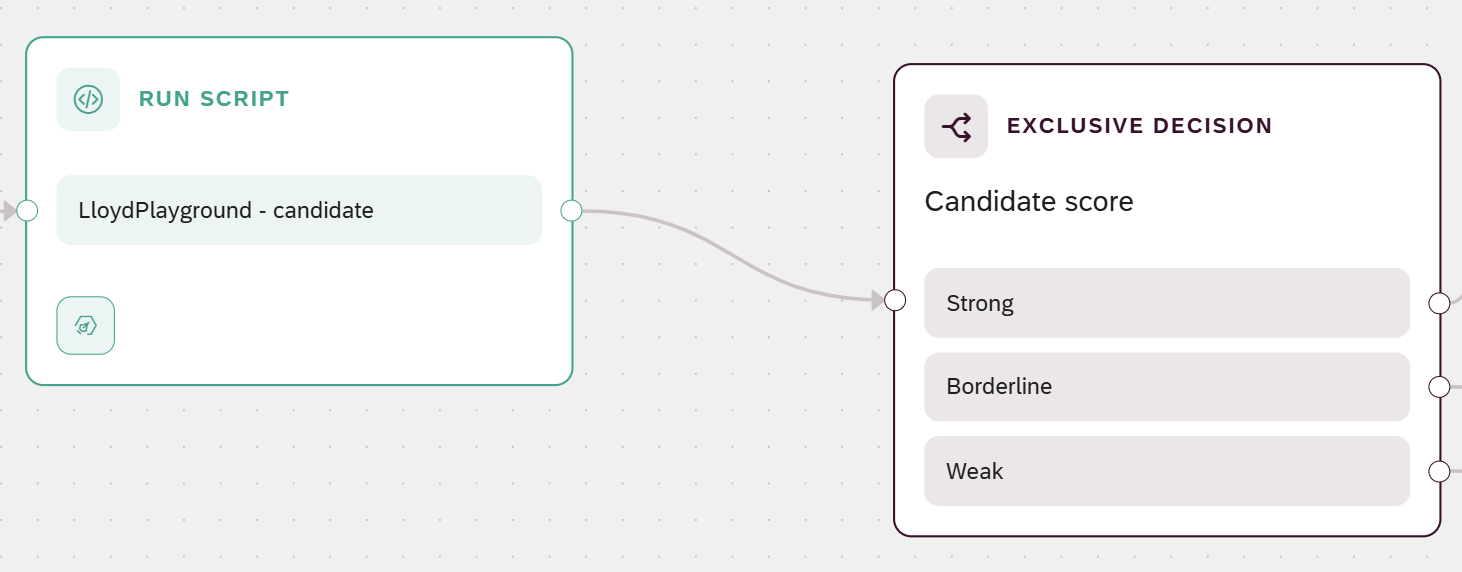
For the difference between an exclusive and an inclusive gateway, and the effect of the default condition, see Gateways and branching reference.
Prerequisites
-
You have created the process flow.
-
You have defined the interface.
-
You have added a script and exposed its output, so the process flow has a Run Script node that outputs a score.
-
You know the score bands you want to route by, for example a
strong, aborderline, and arefer to junior roleband.
Procedure
-
Open the process flow on the canvas.
-
Drag a Decision node onto the canvas, and connect the output of the Run Script node to the input of the Decision node.
-
Select the Decision node to open its details.
-
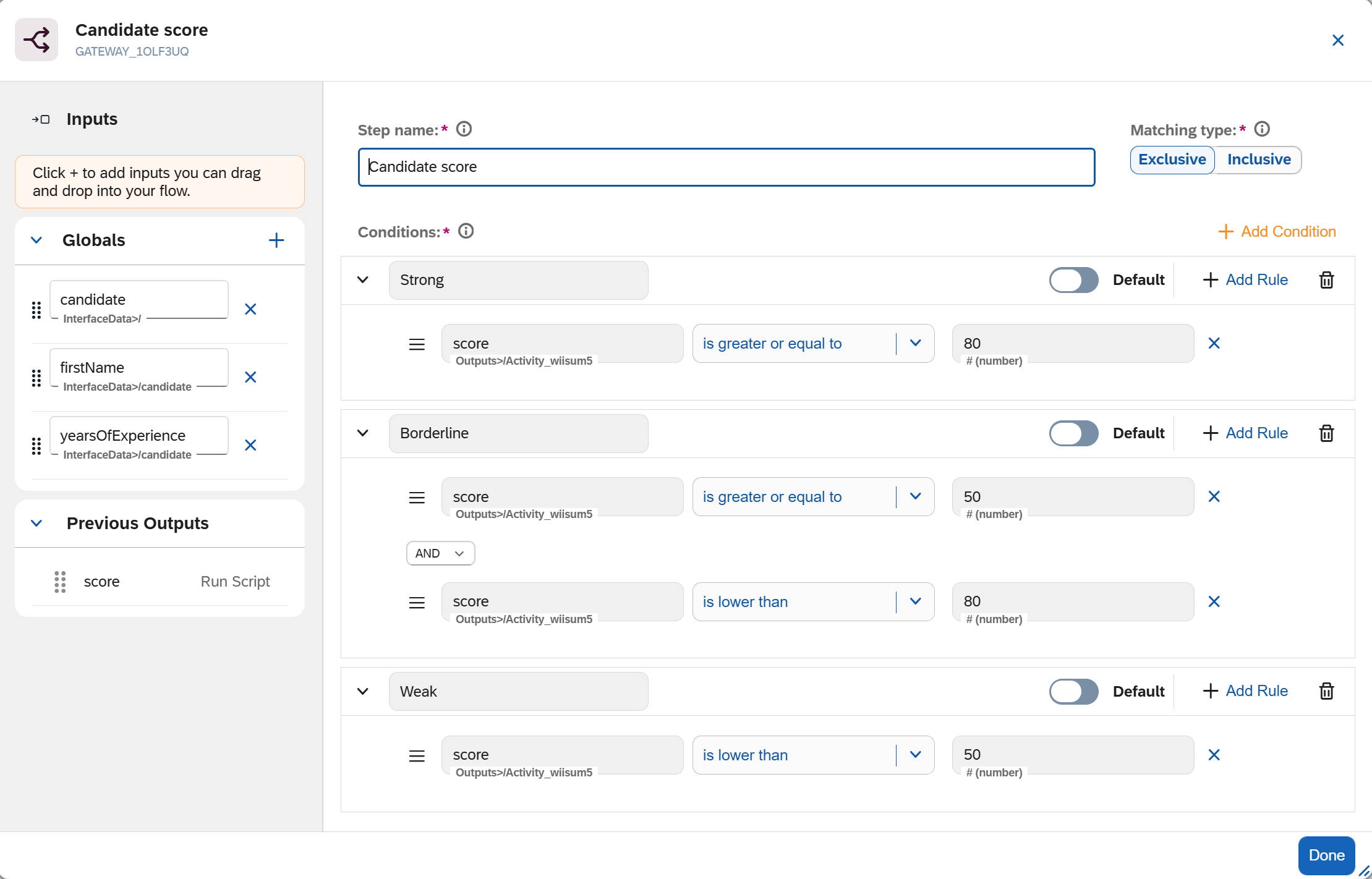
In Step name, enter a meaningful name, for example
Candidate score. -
In Matching Type, select the Exclusive gateway so that each candidate takes exactly one path.
-
Select Add Condition.
-
Enter a label for the condition, for example
Strong. -
From the Inputs panel, drag the score output onto the left operand.
The operand shows the property name, and its full path appears when you hover over it.
-
Select the operator, for example is greater than or equal to under Number.
Result: The rule now expects number values on both sides.
-
In the right operand, enter the threshold value, for example
80. -
Optional: to combine more than one test in the same condition, select Add Rule, then select AND or OR between the two rules.
-
Add the Borderline and Refer to junior role conditions the same way, dragging the score output into each rule. The three bands use these rules:
Condition Rules Strongscoreis greater than or equal to80.Borderlinescoreis greater than or equal to50ANDscoreis less than80.Refer to junior rolescoreis less than50.The Borderline condition combines two rules: select Add Rule and set the aggregator to AND. These bands cover every score without overlap, so on the exclusive gateway each candidate matches exactly one band.
-
Optional: to add a fallback for a value that matches no band, select the radio button on a condition to mark it as the default.
If you set no default and no condition matches at run time, the process flow stops and the run fails. Set a default when the process flow must always continue.
-
Select Done to keep your progress.
Results
-
The process flow has a Decision node that routes each candidate down one path, based on the score from the previous step.
-
Each condition has an outgoing connection point, but no target node yet. You connect each condition to the node that handles its band as you build those nodes in the following tasks:
-
The Strong condition connects to the acknowledgment Send Email node, which you build in Acknowledge the application via email and which then fans out into the two parallel checks.
-
The Borderline and Refer to junior role conditions connect to the outcome email, the Send Email node built in Send an email, so every candidate receives an outcome.
-
-
Until a path reaches the End event, the canvas notes that the process flow is not yet complete.