Search pane
The search pane provides multiple complementary ways to locate and navigate content within your application.
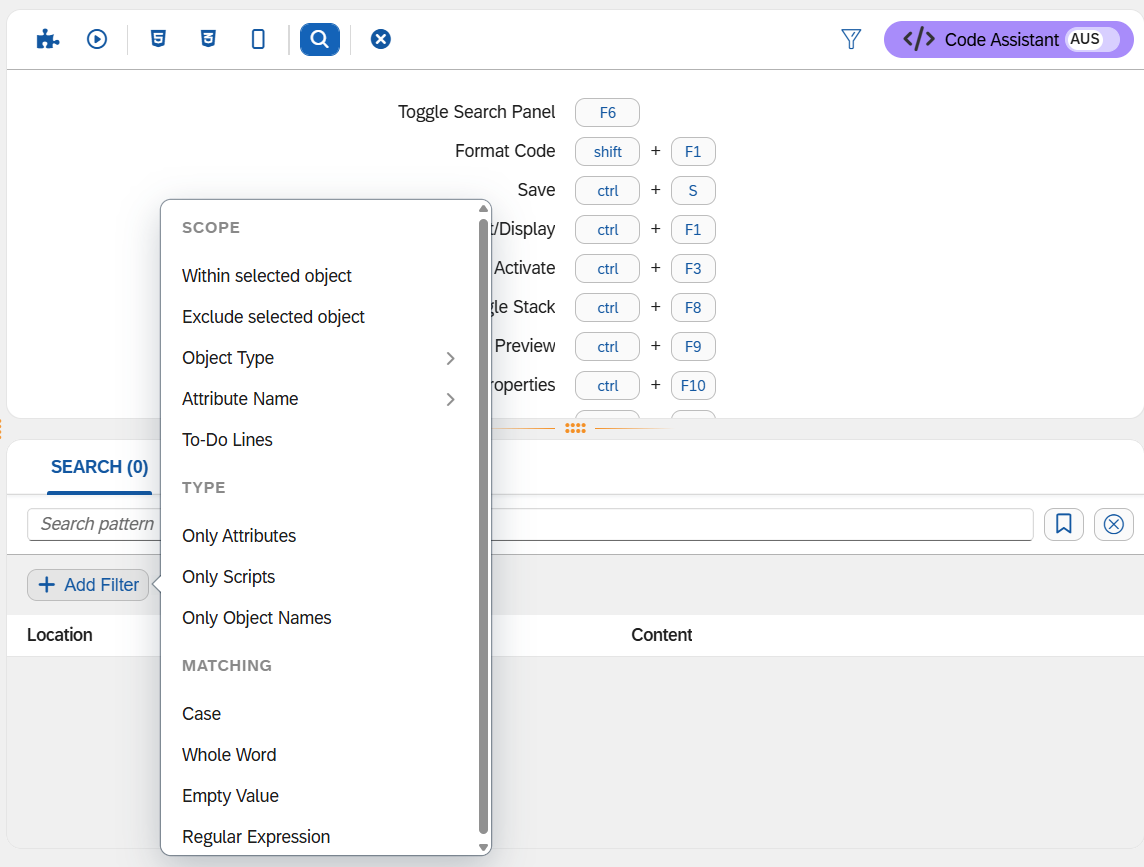
Use cases are auditing content, identifying patterns across scripts, or getting a quick overview of components and attributes in use across a large application where manual tree navigation would be impractical.
Open or close the search pane from the Preview pane via keyboard shortcut F6 or via the menu.
The search pane combines a search field with the following filter groups. You can use each filter on its own or combine filters from all groups:
-
Scope filters determine which part of the application the search covers.
-
Type filters limit the search to scripts, attributes, or object names.
-
Matching filters refine how the search text is compared.
Scope filters
- Within selected object
-
Limits the search to the objects you select in the application tree, including all of their child objects. You can select multiple objects. The selected object is the starting point of the search. If you select a child object instead of its parent, only the child object and its descendants are searched.
Example: Select a page to search text values only within that page.
- Exclude selected object
-
Excludes the objects you select in the application tree, including all of their child objects, from the search. You can select multiple objects.
Example: Select a table to search for a specific binding everywhere in the app except within that table.
- Object Type
-
Limits the results to the selected object types. The picker is searchable and shows how often each object type is used in the app. The value
Custom Componentretrieves all custom components in the app, including partial name matches. - Attribute Name
-
Limits the results to the selected attributes. The picker is searchable and shows how often each attribute is used in the app. The value
Event Scriptretrieves all event script attributes across the app, and the valueFormattersretrieves all formatter attributes. - To-Do Lines
-
Lists all lines in scripts that contain the comments
TODO,FIXME,XXX,OPTIMIZE, andREVIEW. Writing//TODO your descriptionanywhere in your application code surfaces the line in the results.
Type filters
Without a type filter, the search covers scripts, attributes, and object names.
- Only Scripts
-
Searches all application code, including
header/htmlandstylesheet/scssfiles. - Only Attributes
-
Searches the application tree by object attributes. Results are listed with the object name and type.
- Only Object Names
-
Searches the application tree by object name. Results are listed with the object name and type, and unique hits are highlighted directly in the application tree.
Matching filters
- Case
-
Matches the exact capitalization of the search text, for example,
Scriptbut notscript. - Whole Word
-
Matches only whole words, for example, only
Scriptand notScript2. - Empty Value
-
Finds attributes that have no value, for example, bindings or properties that have not been set.
- Regular Expression
-
Interprets the search text as a regular expression, for example,
Script[2-4]to surfaceScript2,Script3, andScript4. If the pattern is invalid, the search pane displays a warning instead of results.
Replace
You can replace matches in the results with a given value. You can revert a replacement with the undo function of the App Designer, like any other change in the application. After a replacement, the search runs again on the replaced text, so the results reflect the current state of the application.
When the Regular Expression filter is on, the replace value supports the following tokens:
| Token | Inserts |
|---|---|
|
The text of the corresponding capture group |
|
The entire match |
|
A literal |
|
Converts all following text to uppercase until |
|
Converts all following text to lowercase until |
|
Converts the next character to uppercase |
|
Converts the next character to lowercase |
|
Ends the conversion started by |
Example: Searching for get_(\w)(\w*) and replacing with get\u$1$2 changes
get_name to getName. Replacing with GET_\U$1$2 changes get_name to
GET_NAME.
Saved searches
You can save the current search text together with all active filters under a name. When you save a search, you decide whether it is available only in the current app or in all apps in the App Designer. Saving a search under an existing name replaces the saved search with that name.
Saved searches are grouped by availability and can be filtered by name. For each saved search, you can do the following:
-
Rename the saved search.
-
Duplicate the saved search, also into the other availability group.
-
Update the saved search to the current search text and filters.
-
Delete the saved search after confirming the deletion.
Recent searches
The search pane keeps the five most recent searches of each app. Selecting a recent search restores its search text and all of its filters.
Worklist
The worklist is a panel for frequently used components, allowing quick access without navigating the full folder structure. You can show or hide the worklist panel as needed. To add a component to the worklist or remove it, use the worklist toggle on the component in the search results or the right-click function Add to Worklist/Remove from Worklist in the application tree.