Search pane
The search pane provides multiple complementary ways to locate and navigate content within your application.
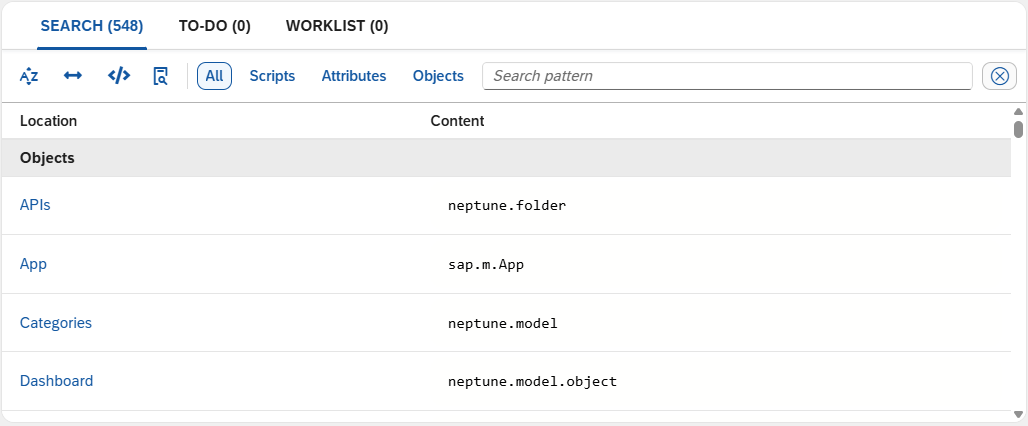
Use cases are auditing content, identifying patterns across scripts, or getting a quick overview of components and attributes in use across a large application where manual tree navigation would be impractical.
Open or close the search pane from the Preview pane via keyboard shortcut F6 or via the menu.
The search pane offers the following layers of control that can be used independently or in any combination:
-
Search modifiers refine how the search is performed.
-
Scope tabs determine where the search looks.
-
The Object type/attribute filter narrows results by object type or attribute.
Search modifiers
Switch the following modifiers on or off to refine your search:
-
Case-sensitive search (for example,
Scriptorscript) -
Whole word search (for example, only
Script) -
Regex search (for example,
Script[2-4]to surface Script2, Script3, and Script4)
Object type/attribute filter
Select the Object type/attribute filter icon to show the Object Type and Attribute dropdown fields. These dropdown fields apply regardless of which scope tab is active.
The dropdown fields support the following special values:
-
Custom Componentin Object Type: retrieves all custom components in the app, including partial name matches. -
Event Scriptin Attribute: retrieves all event script attributes across the app. -
Formattersin Attribute: retrieves all formatter attributes across the app.
Scope tabs
Select a scope tab to define where the search looks: All, Scripts, Attributes, or Objects.
Script search
Searches all application code, including header/html and stylesheet/scss files.
It also allows replacing search results with a given value.
To-do list
The to-do list is a persistent view that lists all places in scripts containing
the comments TODO, FIXME, XXX, OPTIMIZE, and REVIEW. Unlike the active
search scopes, this view updates automatically as comments are added. Writing
//TODO your description anywhere in your application code surfaces it in the
to-do list.
Worklist
The worklist is a persistent view for frequently used components, allowing quick access without navigating the full folder structure.
| To close all open tabs at once, select the × button in the worklist. |