Properties pane
The Properties pane is on the right side of the PDF Designer interface. When you select a component in the Document tree, the Properties pane shows the name, type, and configurable attributes of that component.
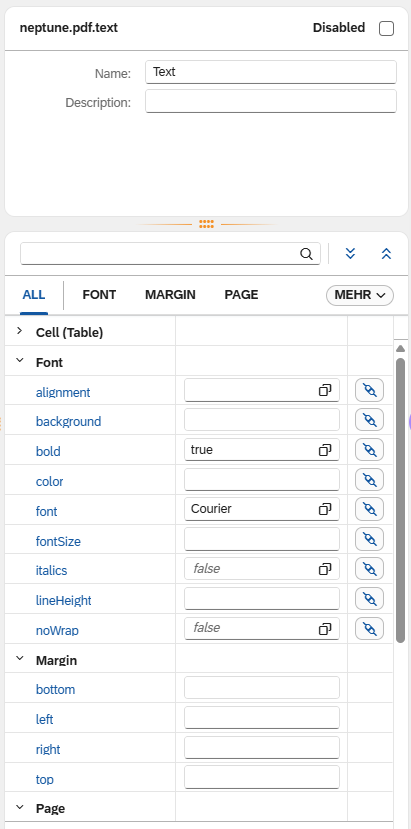
The pane is structured as a single panel. The upper section shows the component header and can be collapsed to give more space to the attribute fields below.
Component header
The upper section of the Properties pane shows the component type and its name. This information is visible even when the section is collapsed.
Selecting the component name in the header navigates to and highlights the corresponding component in the Document tree. In Edit mode, double-clicking the name allows you to rename the component directly in the header.
Attribute fields
The lower section lists the configurable attributes for the selected component. Each attribute field includes a label and a popover that describes what the attribute does and the expected value format. Selecting the information icon on an attribute opens the popover.
Property fields whose values differ from their defaults are visually highlighted for easy identification.
Changed attributes filter
To focus on only the attributes you have configured, select the filter button at the top of the attribute list. This toggles between showing all attributes and showing only attributes whose values have been changed from their defaults. Selecting the filter button again returns the full list.
Disable and enable a component
In Edit mode, the Properties pane header includes a toggle button to disable or enable the selected component. The button shows an eye icon when the component is enabled, and a crossed-out red eye icon when it is disabled.
Toggling the button in the Properties pane affects only the selected component, not its children. To disable a component and all its children together, use the Disable / Enable option in the Document tree right-click context menu.
Disabled components are not rendered in the PDF but remain editable in the Designer. They are shown in red in the Document tree.