Document tree
The Document tree pane shows the current structure of your PDF template. Components are displayed hierarchically. Selecting a component in the tree opens its properties in the Properties pane.
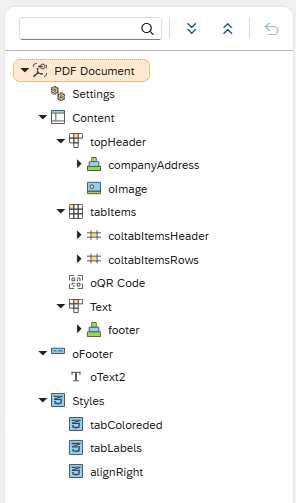
The document tree always reflects the current saved state of your template. To see how the template renders, select Activate in the shell bar to update the Preview pane.
Drag and drop
Drag components from the Component library into the document tree to add them to your template. When dragging a component over a potential parent, a color indicator shows whether the placement is valid:
-
Green indicates a valid parent.
-
Red indicates the parent is not valid for that component type.
Dropping onto a position showing a red indicator may still be permitted in some cases. If a component cannot be placed, a notification appears.
Keyboard shortcuts for moving components
You can reposition components in the document tree using keyboard shortcuts without drag and drop.
| Shortcut | Action |
|---|---|
CMD + Up / Down |
Moves the selected component up or down within its current parent. |
Shift + CMD + Up |
Moves the selected component to the top of its current parent. |
Shift + CMD + Down |
Moves the selected component to the bottom of its current parent. |
CMD + Left |
Moves the selected component out of its current parent to become a sibling of that parent, if the placement is valid. |
CMD + Right |
Moves the selected component under the next item in the tree, if the placement is valid. |
| On Windows, use Ctrl in place of CMD. |
Right-click context menu
Right-clicking a component in the document tree opens a context menu with the following options:
- Add
-
Inserts a child component.
- Copy
-
Copies the selected component, including its structure and attributes.
- Copy to File
-
Downloads the selected component as a
.planet9copyfile. - Paste
-
Pastes a previously copied component.
- Paste from File
-
Uploads a
.planet9copyfile and pastes the component into the selected position. - Duplicate
-
Creates a copy of the selected component in the same parent, preserving all attributes and bindings.
- Disable / Enable
-
Disables or enables the selected component and all its child components.
Disabled components do not appear in the rendered PDF but remain editable in the Designer. Disabled components are shown in red in the document tree. - Rename Object
-
Renames the selected component.
- Delete
-
Deletes the selected component.