Set up Neptune DXP - Open Edition port 80 and port 443 in Windows
Neptune DXP - Open Edition by default listens on port 8080 for HTTP and on port
8081 for HTTPS.
It cannot listen on port 80 and on port 443, because these ports are privileged
and reserved for administrators in the operating system. It is therefore not recommended
to use Neptune DXP - Open Edition as a privileged process. So, we use netsh to
create the redirects from port 80 to port 8080 and from port 443 to port 8081.
| The redirect alone does not serve HTTPS. Port 8081 only serves HTTPS once SSL is enabled inside Neptune DXP - Open Edition. Complete Configure HTTPS in Neptune DXP - Open Edition before creating the redirect. |
Prerequisites
This procedure works using as well as not using Network Load Balancing at the same time.
Configure HTTPS in Neptune DXP - Open Edition
Prepare your certificate and private key in PEM format (the text form beginning
with -----BEGIN CERTIFICATE-----). On Windows, certificates from an internal CA
are often issued as a .pfx (PKCS#12) file, which you must first convert to PEM,
for example with openssl. Include the full certificate chain (server certificate
plus any intermediates), and make sure the certificate’s common name or subject
alternative name matches the host name users browse to, including the Network Load
Balancing cluster name or IP if you use one.
There are two ways to serve HTTPS. Terminate it in Neptune DXP - Open Edition (follow Enable SSL in Neptune DXP - Open Edition), or terminate it at a reverse proxy such as nginx or haproxy while the platform runs over HTTP behind it (follow HTTPS behind a reverse proxy). Use the first unless a proxy already handles TLS in your landscape.
Enable SSL in Neptune DXP - Open Edition
-
In the Cockpit, go to System Settings.
-
In the SSL settings, switch on Enable SSL.
-
In Port, enter the HTTPS port. The default is
8081. -
In Private Key, paste your SSL private key.
The private key is sensitive. Restrict who can view the configuration. -
In Certificate, paste your SSL certificate, including any intermediate certificates.
-
If your key is encrypted, enter the passphrase. If a certificate authority was issued, provide it as well in Intermediate Certificate.
-
Save the changes.
In HTTPS mode, an internal process still binds the HTTP port on the loopback
interface (127.0.0.1) to run internal server script processes. This is expected
and is not externally reachable.
|
Equivalent environment variables
You can set the same values with environment variables, which is useful for automated or repeatable configuration. When a setting is configured both ways, the value in System Settings takes precedence.
| System Settings field | Environment variable |
|---|---|
Enable SSL |
|
Port |
|
Certificate |
|
Private Key |
|
Passphrase |
|
Certificate authority |
|
For more information, see Environment variables.
HTTPS behind a reverse proxy
If a reverse proxy terminates HTTPS, do not enable SSL in the product. Let the
proxy handle the certificate, forward requests over HTTP, and set the
HTTPS_HOSTED environment variable to true. This tells Neptune DXP - Open
Edition it is accessed over HTTPS so that it generates correct URLs and redirects
and marks cookies as secure.
Create the redirect on each server
This either applies to your only server or to all your servers in case you have multiple instances of Neptune DXP - Open Edition in different servers.
-
To check the IP address your server is using in your local area network, run
ipconfigin the command line interface. It will be different for each server (IPv4 IP Address), as shown in the following example.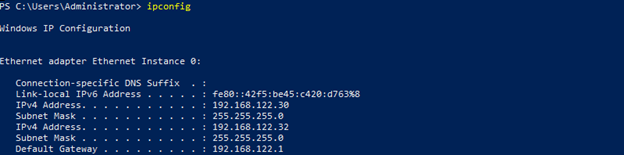
-
To create redirects from port 80 to port 8080 according to our example, run the following in the command line interface:
netsh interface portproxy add v4tov4 listenport=80 listenaddress=0.0.0.0 connectport=8080 connectaddress=<yourIPaddress>
-
To create redirects from port 443 to port 8081 according to our example, run the following in the command line interface:
netsh interface portproxy add v4tov4 listenport=443 listenaddress=0.0.0.0 connectport=8081 connectaddress=<yourIPaddress>
-
To check if your redirects were created, run the following in the command line interface:
netsh interface portproxy show all. Your result should look similar to our following example.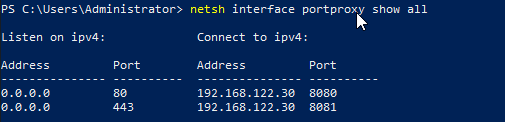
-
If you have multiple Neptune DXP - Open Edition instances, repeat creating the same redirects for the rest of the servers.
Update Network Load Balancing
This is only needed, if you use Network Load Balancing to include the load balancing of the new ports.
-
To open the Network Load Balancing configuration, run
nlbmgr.exein the command line interface. -
Right-click on the cluster and select Cluster Properties.
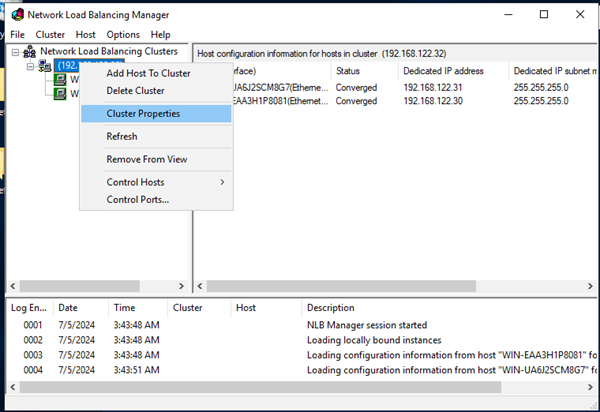
-
In the tab "Port Rules", ensure that you are redirecting port 80 and port 443 in the cluster.
Otherwise, add them with "Affinity:None", as shown in the following example and confirm with "OK".
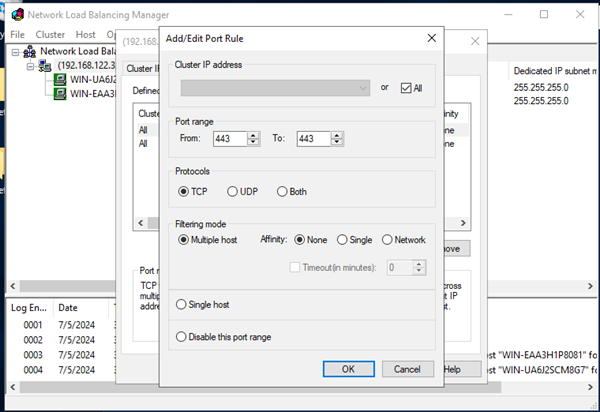
Result: Your redirects show in the tab "Port Rules", as shown in the following example.
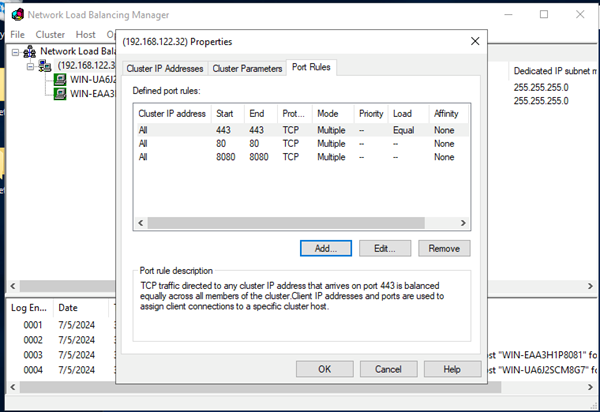
You can close the Network Load Balancing Manager and the redirects should also be active for the clustered IP.
Verify HTTPS
-
Browse to
https://<your-host>;and confirm the certificate and its chain are served without warnings. -
Confirm the redirect from port 443 loads the platform over HTTPS.
Troubleshooting
- Connection refused on 443
-
SSL is not enabled, or the redirect points to a port that is not serving HTTPS.
- Untrusted or invalid certificate warning
-
Intermediate certificates are missing, the certificate is self-signed, or its name does not match the host.
- Cannot read key, or bad passphrase
-
The key is not in PEM format (convert from
.pfx), the key and certificate do not match, or the passphrase is wrong. - Redirect loops or insecure cookies behind a proxy
-
HTTPS_HOSTEDis not set totrue. - No response on 443 at all
-
Port 443 is not open in the Windows firewall.